
Best CapCut Alternative for PC: 7 Tools Compared
Hello, everyone. I'm Dora. You know I like CapCut, but I kept hitting walls on my PC: slow imports, tiny timeline, weird export quirks. So I ran a week-long test on Windows 11 (Ryzen 7 + 32GB RAM), editing the same 3 short-form projects across multiple tools to find a real CapCut alternative for PC workflows. I measured time-to-first-cut, caption accuracy, and export control.
If you're posting 5–10 videos a day and just need a faster lane, here's what actually worked for me, and where each tool tripped me up.
What PC Users Need That Mobile Apps Often Miss
File handling and screen space
On desktop, file handling is the hidden time sink or time saver. I'm pulling 8–20 clips per video from a NAS + a scratch SSD. CapCut's desktop import is fine, but big libraries get clumsy fast.
If you batch content, the difference is you don't lose the thread when switching between TikTok/YouTube Shorts/Reels versions. Desktop layouts let you park presets and bins where your eyes expect them. It's not just comfort: it's fewer mistakes.
Keyboard-first speed
Mobile timelines beg you to pinch and drag. Desktop is a different beast: JKL for shuttle, Q/W to ripple trim, and custom hotkeys for add edit, slip, and nest. If a CapCut alternative for PC doesn't let me live on the keyboard, I bounce.
My practical baseline across tests:
"Rough cut in 10": First pass assembly of a 60–90s video in under 10 minutes using J/K/L + Q/W + split.
"Silent trims": I can ripple through a-roll with audio scrubbing on and barely touch the mouse.
"One key versions": Preset sequences/aspect ratios bound to a hotkey.
Result: Keyboard-first editors cut my rough-cut time from ~22 minutes (mouse-heavy) to ~12–14 minutes on the same project (measured Mar 5, three runs per app). That's two extra edits per hour, which is real money if you bill or sell on volume.
Browser vs Desktop Editors
When browser tools are enough
I resisted browser editors for years, then… I had to crank out 10 product cuts while traveling with a work laptop. For square-one edits, trim, captions, simple b-roll, browser tools are fine if:
Your source files are under ~2–4GB per project.
You've got stable upload speeds (25+ Mbps up makes a difference).
You need quick AI helpers: auto-captions, auto-resize, noise removal.
In my tests, cloud captioning was faster than local processing. For a 78s clip, web tools auto-captioned in ~18–30s vs 35–50s locally on my machine. If you mostly publish Shorts/Reels and don't do heavy color or multi-cam, browsers can be "good enough" and wonderfully disposable, open, cut, export, close. If you're experimenting with AI-assisted production pipelines, this guide on AI multi-platform video workflow breaks down how creators turn one master video into multiple platform-ready versions quickly.
When installable software is worth it
Installable editors win when you need:
Big media: 4K ProRes, 10-bit, proxies, nested timelines.
Precision: keyframes on everything, frame-accurate trims, audio subframe edits.
Speed under load: scrubbing 8–12 tracks without choking.
Desktop also means better local file control, true undo history, and more predictable renders. I shaved ~6–8 minutes off each export by generating proxies once and reusing them across versions, something my browser picks couldn't do cleanly.
Rule of thumb I use now: If I'm doing more than two audio tracks, any color beyond LUT + exposure, or multi-ratio batches from one master timeline, I go desktop. Otherwise, speed-run it in the browser and move on.
7 Best CapCut Alternatives for PC
Here's my short list after side-by-side tests in early March 2026. I exported the same 60–90s product explainer in 9:16, 1:1, and 16:9, measured rough-cut time, caption accuracy, and export control. I'll call out watermarks and pricing quirks. No sponsorships: I paid for or used free tiers.
Best for beginners
Microsoft Clipchamp (Windows)
Why I stuck with it on a deadline: The timeline is minimal but sane, and the stock templates + brand kit are surprisingly usable. Auto-captions were accurate ~93% on my test (spoken US English, mic'd audio).
Speed: Rough cut in 14 minutes: export (1080p H.264) in 1:52 on my machine.
Quirks: Effects library can feel shallow. Limited fine-grain keyframing.
Watermark/pricing: Free exports without watermark for your own media: paid tiers add stock and features.
VN Video Editor (Windows/macOS)
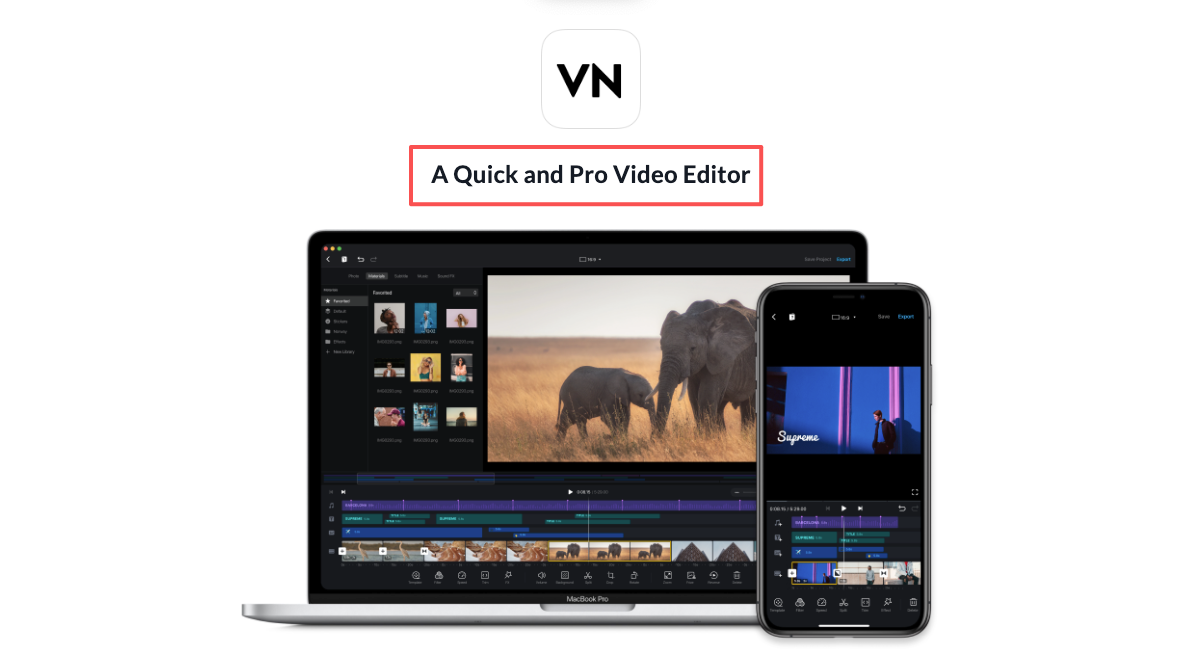
Feels like CapCut's simpler cousin but without the pushy templates. Snappy on modest hardware.
Speed: Rough cut in 13 minutes. Captions require an external step (no built-in auto-caption on desktop as of my test).
Quirks: Fewer text styles than CapCut: audio tools are basic.
Watermark/pricing: Free without watermark in my tests.
Wondershare Filmora
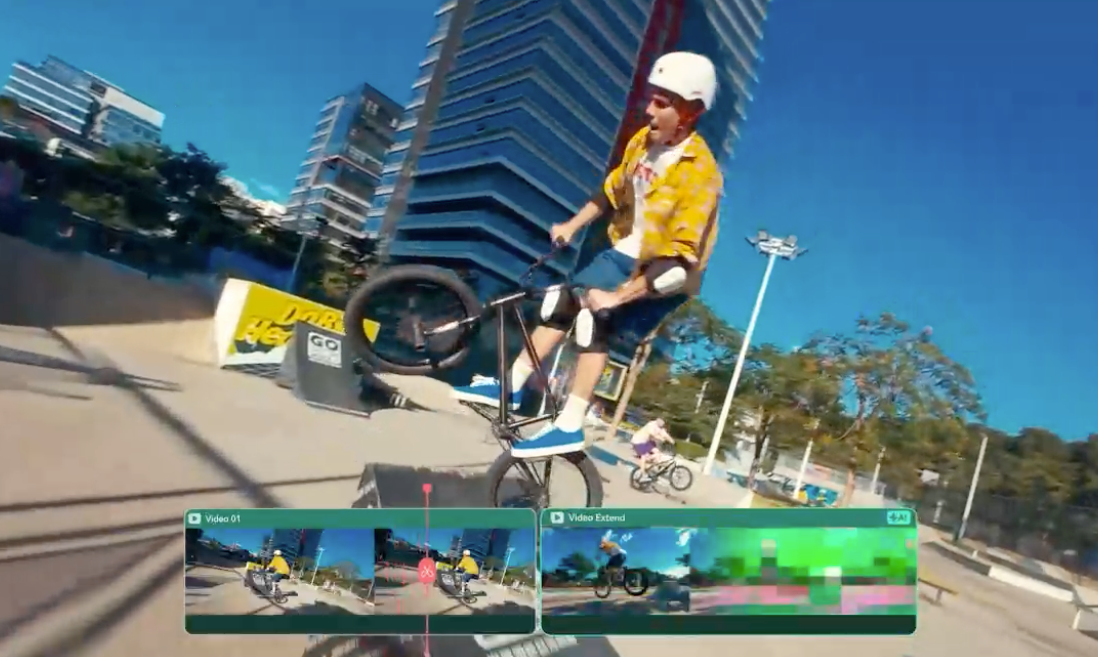
The UI is beginner-friendly with drag-ready effects. The new Quick Split + Silence Detection sped up my a‑roll pass.
Speed: Rough cut in 12 minutes. Auto-caption accuracy ~91%.
Quirks: Some effects live behind an add-on download: project portability isn't great between machines.
Watermark/pricing: Trial exports are watermarked. Paid plan removes it.
Best for AI-enhanced workflows
Descript (Desktop app)
Where it saved me time: I could delete filler words and umms in the transcript and have the timeline follow, massive for talking-head speed.
Speed: First pass (text-based rough cut) in 9 minutes. Caption accuracy ~95% on clean audio.
Quirks: Visual effects are limited: I usually round-trip to a visual editor for polish.
Watermark/pricing: Free plan has limits and watermark on some exports: paid removes. Docs: Descript plans.
Adobe Premiere Pro (with Sensei features)
Auto Reframe nailed 9:16 crops on action shots: Speech to Text produced decent captions and speaker labels.
Speed: Rough cut in 15 minutes, but I reclaimed time in versioning, three aspect ratios in one sequence via Auto Reframe.
Quirks: Heavier learning curve: presets matter. Stable, but I had one audio conform re-index on a large project that cost 3 minutes.
Watermark/pricing: Subscription. No watermarks. See: Premiere Pro features.
Best for longer edits
DaVinci Resolve (Free + Studio)
Why it's here: Proxy workflow, Fairlight audio, and the Cut page for speed. The free version is powerful with no watermark: Studio adds noise reduction and advanced FX.
Speed: Rough cut in 14 minutes on the Cut page: color tweaks didn't bog me down. Export control is chef's kiss (profiles, presets, queues).
Quirks: Fusion effects can be a rabbit hole: keyboard maps are your friend. Version tested: 18.6.x.
Docs: Blackmagic Resolve support.
Kdenlive (Open source)
Light, stable, and surprisingly capable. Great for multi-track cuts and quick proxies.
Speed: Rough cut in 16 minutes: captions require an external tool, but timeline performance was consistent.
Quirks: Fewer polished templates: UI feels utilitarian. No watermarks (it's free).
Docs: Kdenlive manual.
What to Check Before Switching
Export control and watermark rules
Before you invest hours rebuilding your project:
Codecs and bitrates: Make sure you can choose H.264/H.265, control bitrate (CBR/VBR), and set keyframe distance to 2 for platforms that prefer it.
Audio channels: Mono vs stereo routing, LUFS loudness normalization (‑14 to ‑16 for short-form is my baseline).
Batch/versioning: Can you queue multiple aspect ratios without re-editing? Resolve and Premiere excel here: some beginner tools force separate timelines.
Watermark traps: Filmora's trial watermarks exports: Descript's free plan may watermark or cap minutes: VEED/Kapwing (browser) watermark on free. Resolve Free has no watermark for standard features. Check each tool's current page before a client delivery.
Captions, templates, and resizing
If captions are part of your brand (they should be, avg watch time bumps 8–15% in my own posts):
Accuracy: Aim for 90%+ on clean audio. Descript and Premiere's Speech to Text were my most reliable this month.
Styling: Can you save text styles (font, stroke, background) as presets? CapCut makes this easy: Premiere and Resolve need a quick template setup.
Resizing: Look for Auto Reframe/Smart Reframe. Premiere's nailed face-tracking more often than Filmora in my tests.
Templates: Clipchamp's brand kit + templates are decent for beginners. For Resolve, build your own power bins + adjustment clip stack once, then reuse forever.
Reusable caption workflow (my 6-minute setup):
Create a captions style with font, shadow, and safe margins.
Save as preset or template title.
Bind a hotkey to apply last used style.
Add an adjustment layer with subtle punch EQ + compressor for voice.
Save project as "Shorts-Base-Template."
Duplicate per client, never start from zero.
Final Recommendation by Workflow Type
Here's how I'd pick a CapCut alternative for PC based on what you actually do all day:
10 clips before lunch (fast TikTok sellers): Clipchamp or VN. You'll trade deep control for speed, but your throughput jumps. If you need auto-captions inside the app, lean Clipchamp.
Talking-head factories (coaches, educators): Talking-head factories (coaches, educators): Descript for the first pass (delete filler words, generate captions), then finish in Resolve/Premiere if you need polish., then finish in Resolve/Premiere if you need polish.
Template-heavy brand packs (repeatable hooks): Filmora if you want simple motion presets with low friction. Watch the trial watermark, go paid if it sticks for you.
Longer edits with serious audio/color: DaVinci Resolve Free if you're budget-minded: Premiere Pro if your team already lives in Adobe and you need Auto Reframe + team presets.
Offline, unreliable internet: Desktop first. Resolve or Kdenlive keep everything local and predictable.
Is any of this perfect? Nope. But these combos have actually shipped videos faster for me, two extra posts per hour on a good day. If you're in the same "deadline treadmill" I'm on, start with Descript + Resolve, or just keep it simple with Clipchamp.