
Hailuo AI Image to Video: Workflow Guide 2026

I tested this thing 47 times over two weeks before I understood what it was actually good at.
The core problem with Hailuo AI image to video is not capability—it's expectation mismatch. Not because the interface is confusing — it isn't. Because I kept asking it to do things it's not built for. That's the pattern with Hailuo AI image to video. It rewards people who understand its constraints. It punishes anyone who treats it like a magic box.
If you've been getting warped faces, jittery motion, or clips too short to edit into anything — this is the piece that fixes that. Here's the actual hailuo workflow I run now, with the prompt structures, settings, and recovery moves that dropped my re-edit rate from "constant" to "manageable."
Hailuo I2V in 2026
Current Model Versions and Access
Quick version check before the workflow — this matters.
Hailuo (built by MiniMax) runs several model variants. Relevant to image animation systems like MiniMax image to video, these include multiple generation modes optimized for different motion styles:
I2V-01 — standard image-to-video, general purpose
I2V-01-Live — for animating illustrated or stylized artwork
S2V-01 — subject reference mode, locks character consistency across clips
T2V-01-Director — cinematic camera control via bracketed commands like [Pan left] and [Zoom in]
Hailuo 02 / 2.3 — newer architecture that generates at native 1080p with noticeably better motion quality
For most short-form work, you'll live in I2V-01 or Hailuo 02. Director mode is worth learning once you're building multi-clip sequences where camera continuity matters.
Free plan: roughly 4–8 test generations at 768p with a watermark. Paid plans start around $9.99/month, but a single 1080p clip costs 80 credits — Standard tier gives you about 12 full-quality videos per month. Credits are consumed whether or not the output is usable.
What I2V Does Well vs. Struggles With
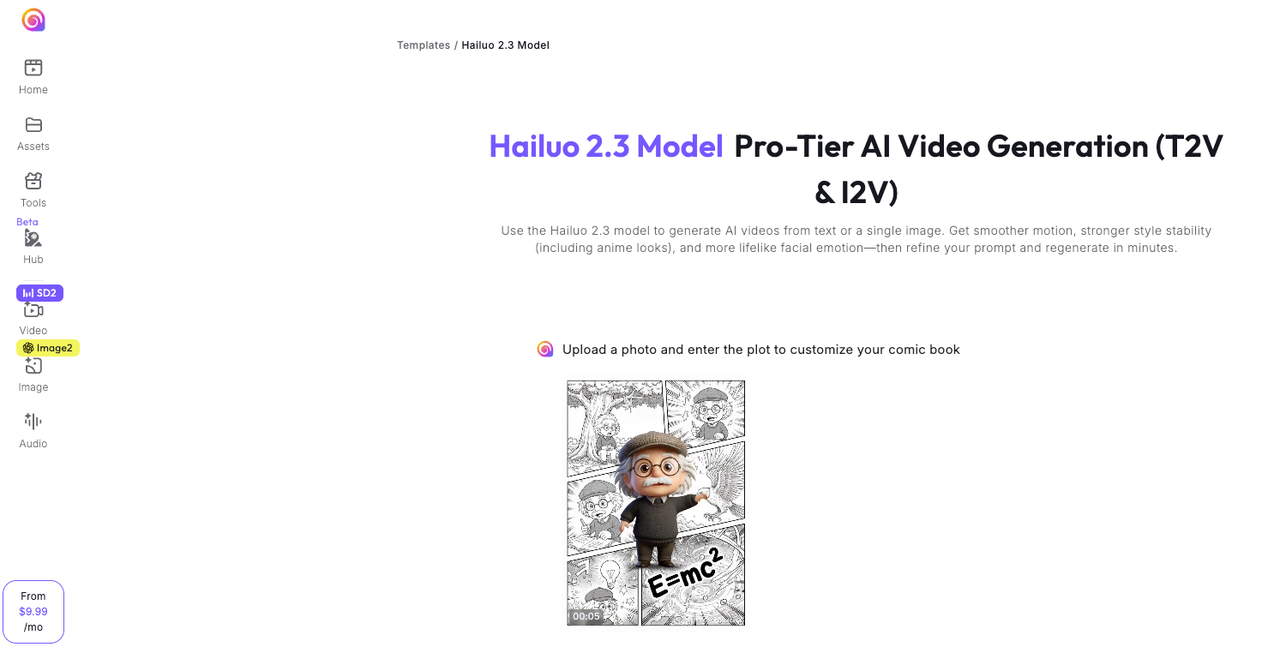
Hailuo is also strong at a specific category called Hailuo image animation, especially when dealing with subtle motion such as hair, fabric, and slow cinematic camera movement. Genuinely bad at others.
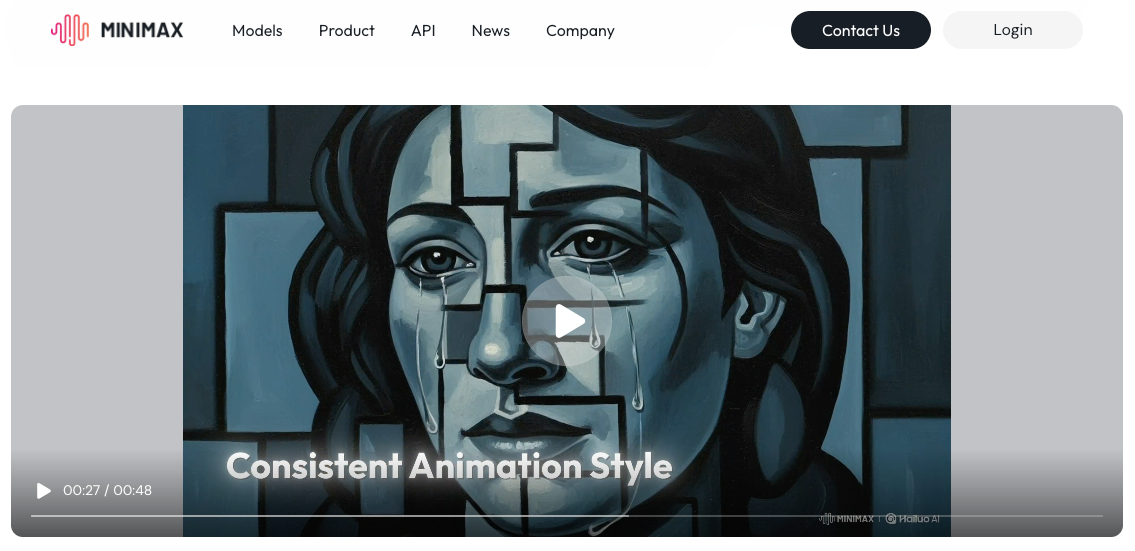
Consistent: slow-to-medium camera movements, subject feature retention across 6 seconds, physics-adjacent motion (fabric, hair, water), single-subject clean-background setups, anime and stylized content.
Inconsistent: complex multi-subject compositions, extreme or fast motion, hands in prominent positions, dense backgrounds, anything over 10 seconds (hard limit).
That 10-second ceiling is the thing that catches creators off guard. Each hailuo clip is a building block, not a finished piece. The workflow isn't "generate a great video" — it's "generate great clips that cut together."
Preparing the Source Image
Resolution, Crop, Subject Clarity
The image is doing 60% of the work before you write a single prompt word.
MiniMax accepts up to 20MB per upload. Aim for at least 1080p source resolution — the quality gap between 720p and 1080p input shows clearly in facial detail and motion edges. Crop before you upload so your main subject fills 40–60% of the frame; subjects that are small in a wide shot get proportionally less model attention.
Avoid images where the subject is cut off at frame edges. The model tries to "complete" what's off-screen during animation. That's where you get the melting limbs.
What Images Hailuo Handles Best
Clean subject, clean background, consistent lighting. The formula that fails least:
Product shots on simple backgrounds: excellent
Portraits with good light and clear face: solid
Architecture and landscape stills: strong, great for slow pans
Multiple overlapping subjects: avoid unless chaos is acceptable
Step-by-Step Workflow
Upload and Basic Settings
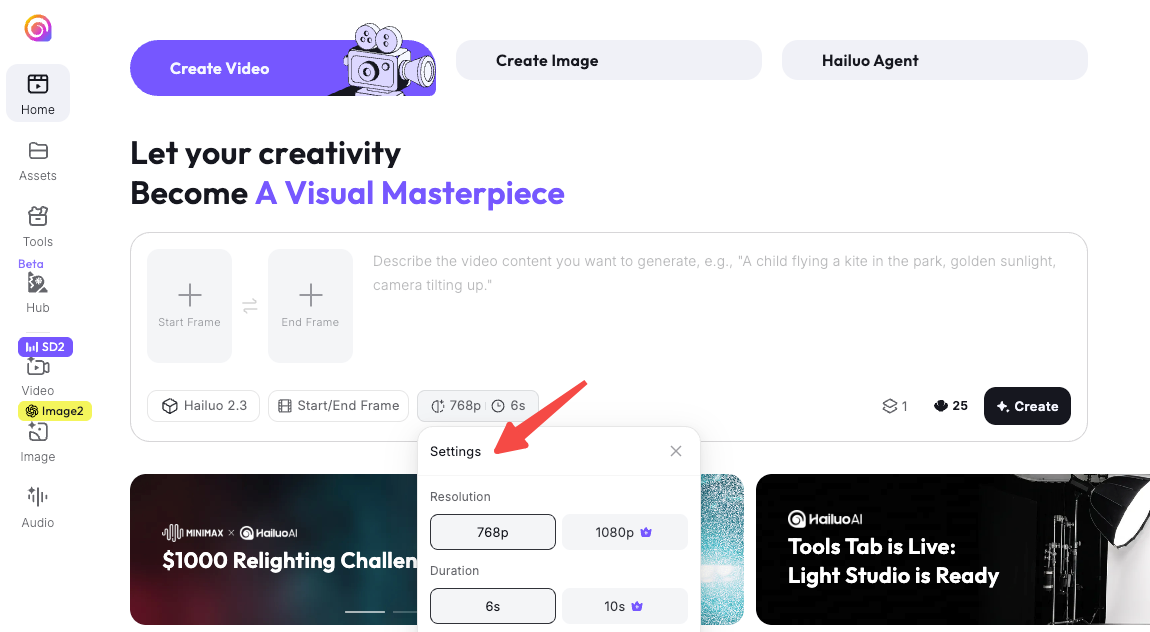
Open Hailuo AI's image-to-video tool and upload your source image.
Set duration before writing a prompt — 6 or 10 seconds. I almost always use 10 for final production clips; you need trimming headroom. For concept testing, 6 costs fewer credits.
Set aspect ratio before generating: 9:16 for TikTok and Reels, 16:9 for YouTube, 1:1 for feed. Cropping AI video in post loses edge detail.
Write the Motion Prompt
This is where most people get it wrong — including me for the first three days.
In I2V mode, Hailuo already sees your image. Do not describe the image. Describe only the motion you want. That distinction sounds small. It changes everything.
Structure that works consistently:
[Camera movement] + [Subject action] + [One atmosphere detail]
Example that works: "Camera slowly pushes in while the subject turns their head slightly left, hair catching the light. Soft golden haze in background."
Example that doesn't: "A woman with brown hair sits at a desk in warm light, turning her head to the left as the camera moves closer." — The model confuses description with instruction.
Stay in the 40–60 word range. VEED's Hailuo prompt research found that longer prompts add conflicting variables more often than they add quality. I've seen 120-word prompts produce worse results than a 45-word version of the same instruction.
Use double-parentheses (( )) for features that must hold: ((blue jacket)), ((product label facing forward)). It shifts the model's weighting toward those details.
Use Camera / Motion Controls If Available
Hailuo responds reliably to bracketed camera commands in Director mode:
[Pan left] / [Pan right] / [Zoom in] / [Dolly forward] / [Tracking shot]
One action per clip. Prompt two distinct movements in one 6-second clip and you get temporal blending — the model compresses both into a half-baked version of each.
Generate and Compare Seeds
Run 2–3 generations of the same prompt before deciding the prompt is wrong.
Hailuo has meaningful output variance between seeds. The same prompt can produce one clip where the face holds perfectly and another where it drifts at 4 seconds. Treat first-generation output as data, not verdict.
Iterate on Failed Outputs
When a generation fails, diagnose before rewriting:
Face warped mid-clip? Motion was too extreme. Add "subtle" or "minimal movement" before the action description.
Clip deteriorates after a few seconds? Try 6 seconds instead of 10, or split the motion across two clips.
Subject transforms entirely? Source image had too much ambiguity — switch to S2V-01 with a reference photo.
Nothing moved at all? Prompt read as description, not instruction. Start with a clear motion verb: "The subject slowly raises their arm" not "the arm is raised."
Prompt Patterns That Work
These are from my actual production log. Copy the structure, adapt the content.
Camera Motion
"Camera slowly tracks right in a fluid arc, revealing the full product on a clean surface. No subject movement."
"Dolly forward from medium shot to close-up. Subject remains still."
Subject Motion
"The subject's eyes shift slowly left to right, as if reading off-screen. Hair gently moves. Camera holds steady."
"Fabric ripples gently in wind from the left. Model's posture stays fixed, only clothing moves."
Style and Lighting
Add these at the end of motion prompts — they improve coherence without blowing word count:
cinematic, shallow depth of field, film grain
natural window light, soft shadows, realistic skin tones
shot on Arri Alexa, photorealistic, documentary style
The filmmaking terminology works because the model was trained on real production language. It's not decoration — it's a shortcut to a learned visual register.
Common Failures and Fixes
Warped Faces or Hands
Still the most frustrating issue with minimax image to video in 2026.
For faces: use S2V-01 (subject reference mode) for recurring characters. In standard I2V, add a highly specific prompt description — unique traits are better anchors than general ones: ((32-year-old woman, angular jawline, small gap between front teeth)) beats ((young woman)).
For hands: keep them out of prominent frame positions where possible. If hands appear, restrict movement explicitly: "The subject's hands remain completely still throughout." You trade expressiveness for stability. That's the real tradeoff right now.
CFG value (if your interface exposes it): AI Video Bootcamp's testing found the optimal range is 5.0–7.0. Below 4.0, hands and composition drift. Above 8.0, output is over-processed. Start at 6.0, adjust in 0.5 increments.
Negative prompts matter more than most people realize: morphing, extra limbs, distorted geometry, blurry, fast motion, overexposed. Add these before every generation. Reduces failure rate without touching your core prompt.
Unwanted Extreme Motion
You asked for a subtle head turn and got whiplash.
Fix: replace speed descriptors with duration cues. Instead of "slowly looks up," try "over the full 10 seconds, the subject's gaze moves gradually upward by about 20 degrees." Time-anchored motion gives the model a concrete constraint that adjectives don't.
Clip Too Short for Your Edit
Six seconds isn't enough for most editing workflows. Ten is barely enough.
This is the architecture, not a bug. Generate with a clean end frame — zero motion in the last second — to create a natural cut point, then bridge with a second clip that starts from a similar visual state. More work upfront, but it's the workflow this tool is designed for.
The assembly stage is where a tool like NemoVideo picks up — stitching hailuo image animation clips into a publishable short with captions, audio, and platform-ready export in one place.
From Hailuo Clip to Publishable Short
Trim, Caption, Music, Platform Export
Raw Hailuo output is a clip, not a video. Production work happens after.
Trimming: Even 10-second generations have 0.5–1 second of model "warm-up" at the start. Plan to work with 8–9 usable seconds per generation.
Captions: Add them in your editing tool, not in Hailuo. Generate captions from the audio file, not the video.
Platform export:
TikTok / Reels: 9:16, 1080×1920, H.264
YouTube Shorts: same specs, 60-second max
LinkedIn: 1:1 or 16:9 natively
Export at highest quality first, then let the platform compress. Compressing before upload kills detail twice.
FAQ
Is Hailuo I2V free? Free tier: roughly 4–8 test generations at 768p with a watermark. For 1080p without a watermark, you need a paid plan. Standard at ~$9.99/month equals about 12 high-quality clips per month — not enough if you're producing at volume.
Max clip length? 10 seconds native. Third-party wrappers claim agent-chained longer sequences, but native Hailuo I2V caps at 10 seconds per generation.
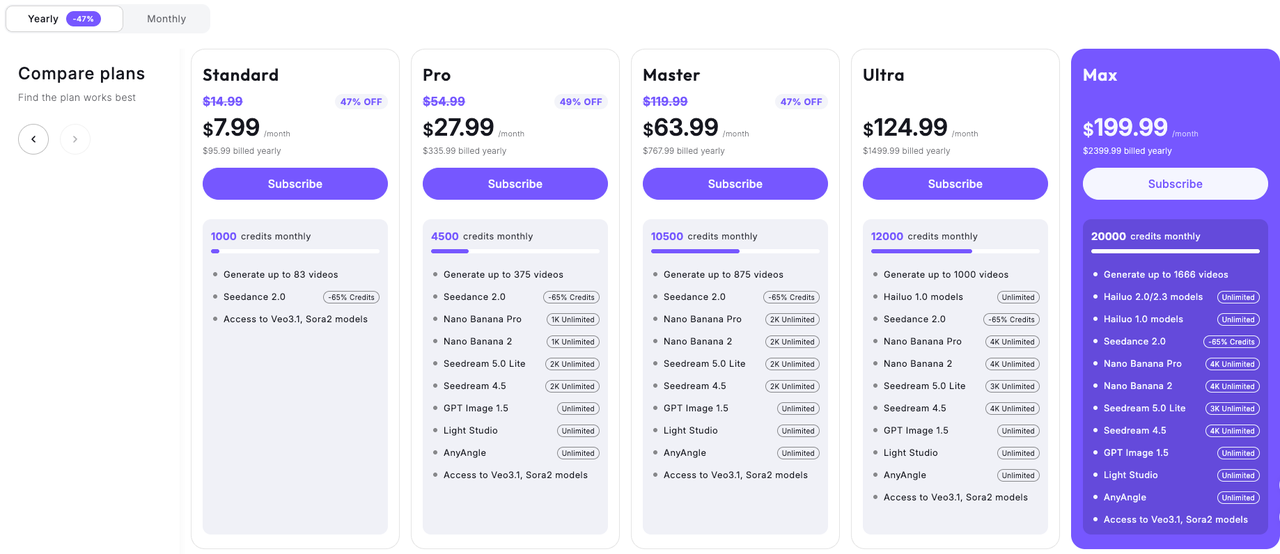
Commercial use? Paid plans include commercial rights. Verify current terms on MiniMax's pricing page before using for client work — free plan outputs carry restrictions.
Hailuo vs. Kling for product shots? Hailuo has better motion coherence and responds more reliably to camera direction prompts. Kling 2.6 handles human-presenter close-ups more consistently. For product animation on a clean background, Hailuo is my first choice. For content where a person interacts with a product, Kling holds the face better.
Conclusion
Hailuo AI image to video is a real production tool in 2026 — not a finished workflow solution, but a legitimate clip generator that rewards knowing how it works.
The changes that moved my output quality most: cleaner source images, motion-only prompts, running multiple seeds before calling a prompt broken, and treating every clip as a building block. None of that is complicated. It just means adjusting expectations away from "one click, one video."
Worth running if you're producing short-form at volume and want cinematic clip quality without a full production stack. Worth skipping if your content centers on close-up hand work or needs clips longer than 10 seconds. Use Hailuo where it wins.
Previous Posts: